✨ Want to make your Outlook emails more expressive, engaging, and modern? Emojis in Outlook can instantly add personality, improve communication, and help your messages stand out in crowded inboxes.
A few months ago, I received an email from a colleague that ended with 😊 instead of the usual formal sign-off. Surprisingly, it felt warmer, friendlier, and more personal.
That small emoji completely changed the tone of the conversation. Since then, I started noticing emojis everywhere in Outlook emails from business newsletters and team updates to customer support messages and personal conversations.
However, many people still wonder how Outlook emojis work, why they sometimes look different on various devices, and which emojis are best to use.
If you’ve ever been confused about using emojis in Outlook or simply want to make your emails more engaging, this guide covers everything you need to know add emoji to outlook email.
You’ll learn emoji meanings, copy-paste combinations, social media-inspired ideas, common fixes, and the latest emoji trends for 2026.
What does Emoji On Outlook mean?
Emoji On Outlook refers to using emojis within Microsoft Outlook emails, calendars, subject lines, and messages to express emotions, ideas, or reactions visually.
Emojis help:
- 😊 Show friendliness and positivity
- 👍 Confirm approval or agreement
- 🎉 Celebrate achievements
- ❤️ Express appreciation
- 🚀 Highlight exciting news or launches
In Outlook, emojis function similarly to those used on social media platforms and messaging apps. However, their appearance may vary depending on the recipient’s device, operating system, and Outlook version.
Popular Outlook Emoji Meanings
| Emoji | Meaning |
|---|---|
| 😊 | Happiness, friendliness |
| 👍 | Approval, agreement |
| 🎉 | Celebration |
| 🚀 | Growth, success |
| ❤️ | Appreciation, care |
| 🔥 | Trending, exciting |
| 💡 | Idea or suggestion |
| ✅ | Completed task |
How to use Emoji On Outlook emojis
Adding emojis in Outlook is simple.
Windows Shortcut
Press:
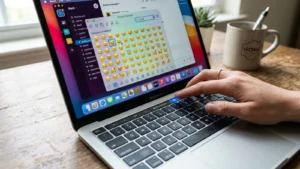
Windows Key + . (period)
This opens the emoji picker.
Mac Shortcut
Press:
Control + Command + Space
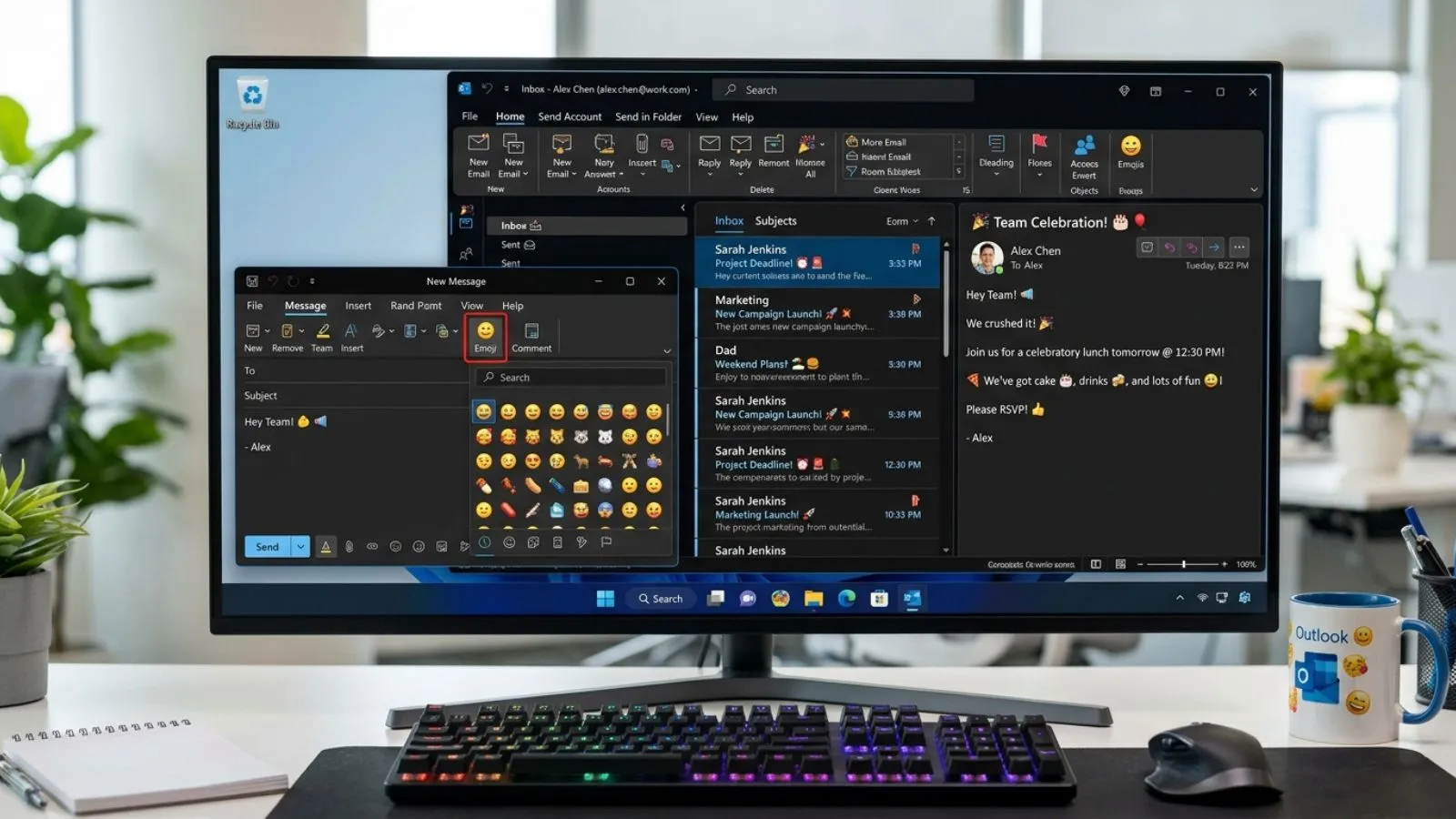
Outlook Web Version
- Open a new email.
- Click the emoji icon.
- Select your preferred emoji.
- Insert it into the email body or subject line.
Real-Life Example
Instead of writing:
“Your order has been shipped.”
You can write:
“Your order has been shipped 🚚✨”
The message feels more engaging and human.
Best emoji combinations for copy paste
Ready-to-use Outlook emoji combinations:
Friendly Email
- 😊👋
- 🌞😊
- 🤝✨
- 💬😊
- 👍😄
Work & Business
- 📈🚀
- 💡✅
- 📅📝
- 🎯📊
- 🤝💼
Celebration
- 🎉🥳
- 🎊✨
- 🎂🎁
- 🏆🎉
- ⭐🎉
Thank You Messages
- ❤️🙏
- 😊💖
- 🙌✨
- 🌟🙏
- 💕😊
Copy-Paste Favorites
- 🚀🔥
- ✨💯
- 💙🌎
- 🎯✨
- ⭐🌟
Aesthetic emoji ideas for social media
Many users combine Outlook email signatures with Instagram, Ticktock, and Whats App-inspired emoji styles.
Soft Aesthetic
- ☁️✨🤍
- 🌸🦋✨
- 🌷💖🌿
- 🌙⭐🤍
- 🍃☁️✨
Professional Aesthetic
- 💼✨
- 📈🚀
- 🎯💡
- 📝📊
- 🤝✅
Minimalist Style
- ✨🤍
- 🌿✨
- ⭐🤍
- ☁️🌙
- 💫✨
Email Signature Examples
Best Regards 😊
Thank You 🙏✨
Have a Great Day ☀️😊
Looking Forward to Hearing From You 🚀
Common problems and solutions
Emojis appear as boxes
Cause: Older Outlook versions may not support newer emojis.
Solution: Update Outlook and Windows/macOS.
Emojis look different to recipients
Cause: Each operating system displays emojis differently.
Solution: Use common emojis like 😊, 👍, ❤️, and 🎉 for maximum compatibility.
Emojis not showing in subject lines
Cause: Some email clients limit emoji support.
Solution: Test your email before sending important campaigns.
Emoji shortcut not working
Solution:
- Restart Outlook
- Update your operating system
- Verify keyboard shortcuts are enabled
Email looks unprofessional
Solution: Use emojis moderately in business communication. One or two relevant emojis are usually enough.
Trending emoji usage in 2026
The way people use emojis continues to evolve. In 2026, these emojis are among the most popular for Outlook emails and online communication:
| Trending Emoji | Popular Usage |
|---|---|
| 🚀 | Growth and success |
| 🔥 | Viral content |
| ✨ | Positive emphasis |
| 🤖 | AI discussions |
| 💯 | Strong approval |
| 🎯 | Goals and focus |
| 🌎 | Global communication |
| 🙌 | Team achievements |
Trending Email Subject Examples
- 🚀 Big Updates You Don’t Want to Miss
- 🎉 Special Offer Ends Tonight
- 🔥 Trending News This Week
- 💡 New Ideas for Your Business
- ✨ Exciting Announcement Inside
Using trending emojis can increase engagement while making emails feel modern and approachable.
FAQs
Can I use emojis in Outlook subject lines?
Yes. Outlook supports emojis in most subject lines, and they can improve visibility when used appropriately.
Are Outlook emojis professional?
Yes, when used in moderation. Friendly workplaces and marketing emails commonly use emojis today.
Why do Outlook emojis look different on another device?
Emoji designs vary across Windows, Mac, Android, iPhone, and email clients.
What is the fastest way to insert emojis in Outlook?
Use Windows + . on Windows or Control + Command + Space on Mac.
Which emojis are safest for business emails?
😊, 👍, 🎉, 🚀, 💡, and ✅ are widely understood and generally appropriate.
Can emojis improve email engagement?
Yes. Relevant emojis can make emails more noticeable and engaging when used thoughtfully.
Conclusion
Emojis on Outlook have become a simple yet powerful way to make emails more engaging, friendly, and memorable.
If you’re sending a professional update, celebrating a milestone, thanking a customer, or adding personality to your daily communication, the right emoji can help convey your message more effectively.
Outlook supports a wide range of emojis that are easy to insert, copy, and customise. Understanding their meanings, knowing how they display across devices, and using trending emoji combinations can improve both personal and professional communication.
As emoji usage continues to grow in 2026, balancing creativity with professionalism is the key to making every Outlook email stand out while maintaining clarity and credibility.